How to Connect an eSSL / ZKTeco Biometric Machine to the Cloud (ADMS Setup, Step by Step)
For years the only way to pull data off an eSSL or ZKTeco biometric machine was to keep a PC on in the office running eTimeTrackLite, connected to the machine over the local network. The moment that PC was switched off — a power cut, a long weekend, a staff member who forgot — punches stopped syncing. There is a much simpler way that is already built into most modern eSSL and ZKTeco machines: ADMS, also called Cloud Server or Push mode. In this mode the machine itself calls a server over the internet and uploads every punch on its own.
What ADMS / Cloud Server mode actually does
ADMS stands for Automatic Data Master Server. Instead of a PC on your network reaching into the machine (which needs the PC, the software, and a fixed local network), the machine reaches out to a cloud server address you give it and pushes punches there. Because the machine is the one making the connection, you do not need a static IP, port forwarding on your router, or a VPN. Any ordinary broadband or even a mobile hotspot works.
The settings on the machine
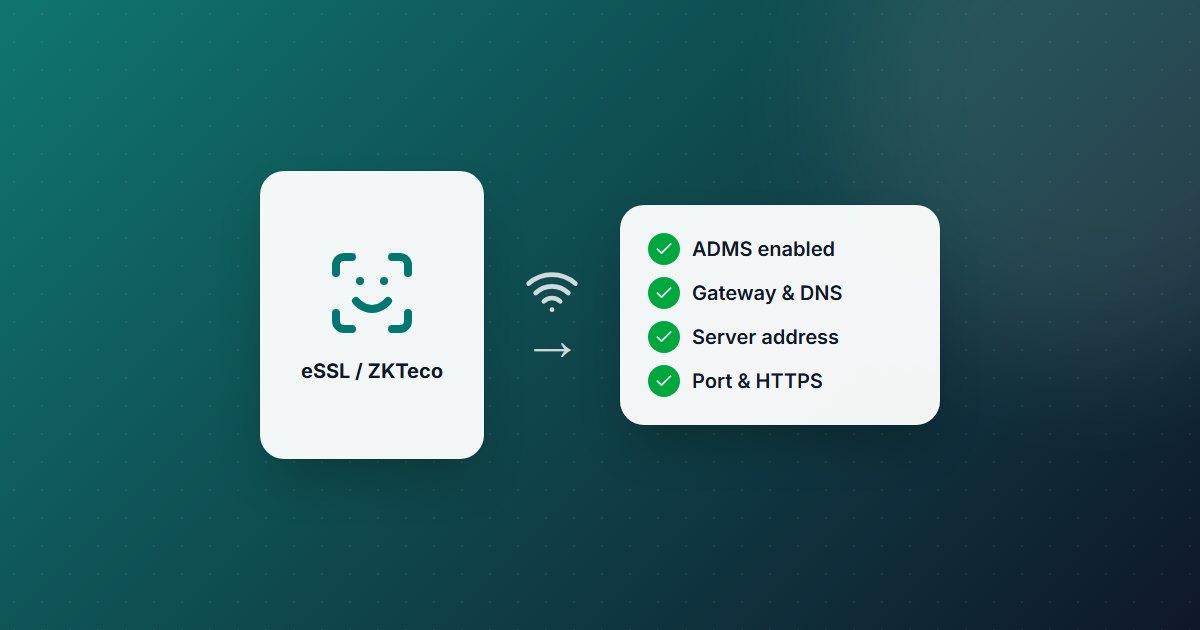
The exact menu names vary slightly between eSSL and ZKTeco models, but the fields are the same. On the device, open Menu → Comm. (Communication) → Cloud Server Setting / ADMS, then set:
- Server Mode: ADMS (on models that ask for it)
- Server Address: the cloud server address your provider gives you
- Server Port: 80
- Enable Domain Name: on if your provider gives a domain name (ZKTeco manuals show it as http://yourdomain), off for a plain IP address
- Enable Proxy Server: off, unless your network really uses a proxy
- HTTPS: usually off for the push channel (the server still stores data securely)
Save, and the machine will show a connection status. Within a few seconds the first punches appear in the cloud dashboard. One important note: the machine's clock must be right, or punches arrive with the wrong time — on some eSSL firmware the time zone can end up wrong. A good cloud platform corrects this automatically.
Which machines support it?
Face and fingerprint machines from eSSL and ZKTeco that list ADMS / Cloud Server / Push in their communication menu will work. Older models without that menu cannot connect this way. If you are not sure about your model, send us the model number and we will check it for you.
Once the machine is pushing to the cloud, every punch becomes live attendance, salary and gate logs on any phone. That is exactly what Attenza does — it gives your machine a cloud server to talk to, fixes the clock, and turns the punches into attendance, payroll and visitor management. No PC left running in the office.
Sources
- ZKTeco MB10-VL User Manual — Cloud Server Setting (COMM. menu)
- ZKTeco SenseFace 3 Series User Manual — communication settings
Rules, rates and product ranges change. Check the latest official notification or datasheet, and confirm statutory points with your CA.
Put your biometric machine on the cloud
Attenza turns eSSL / ZKTeco punches into attendance, payroll and gate logs — no PC, no static IP. Free 14-day trial.